


How to Solve File Permissions Issues on Linux
By JB Webb-Benjamin
What Do I Need?
- [tool]A Dedicated or VPS Linux Server[/tool]
- [tool]CentOS 8[/tool]
- [tool]Rufus for Windows[/tool]
- [tool]Putty for Windows[/tool]
What are File Permissions and why do they Hurt?
[openingText]File permissions are super important in Linux as without them, anyone could do anything to your server and the files stored on it. Although there are already a lot of good security features built right into Linux-based servers, one very important potential vulnerability is when local access is granted. That is, file permission based issues resulting from a user not assigning the correct permissions to files and directories. Permissions are split into permission groups and permission types.[/openingText]
Permission Groups
Each file and directory has three user based permission groups:
- Owner (u) – the owner permissions apply only to the owner of the file or directory, they don’t impact the actions of other users.
- Group (g) – the group permissions apply only to the group that has been assigned to the file or directory, and again they won’t affect the actions of other users.
- All Users (a) – the all users permissions apply to all other users on the system, this is the permission that you want the most.
Permission Types
Each file and director has three basic permission types:
- Read (r) – the read permission refers to a user’s capability to read the contents of the file.
- Write (w) – the write permission refers to a user’s capability to write or modify a file or directory.
- Execute (x) – the execute permission affects a user’s capability to execute a file or view the contents of a directory.
- [stepName]Boot your Server[/stepName][step]
- [howToDirection]Boot your server into single-user mode, press ‘p’ key.
[stepImage]
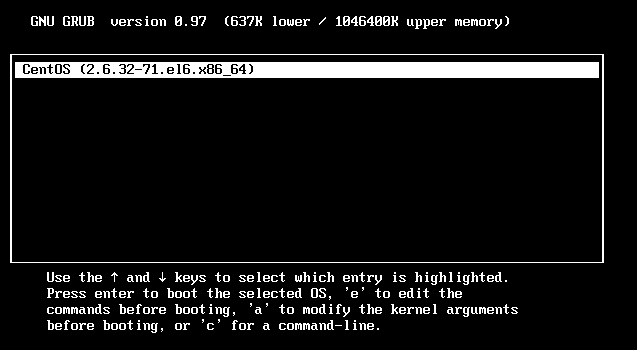
- [howToDirection]Select the kernel[/howToDirection].
- [howToDirection]Press the ‘e’ key to edit the entry.[/howToDirection]
- [howToDirection]Select the line that starts with the word kernel
[stepImage]
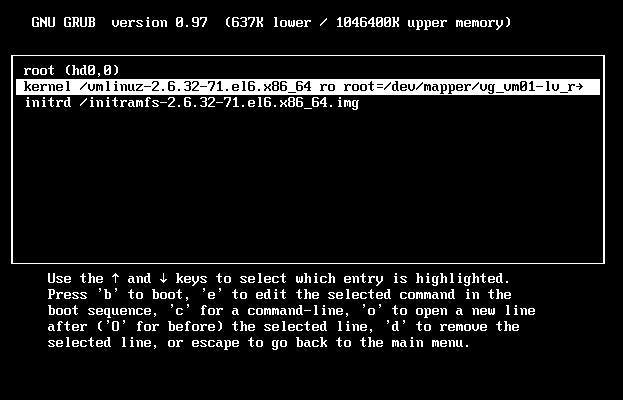
- [howToDirection]Press the ‘e’ key to edit the entry.
[stepImage]
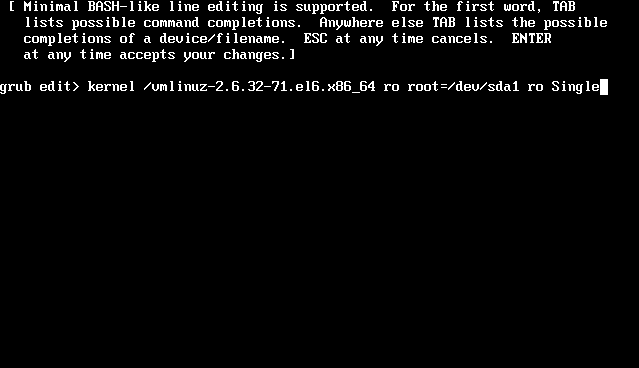
- [howToDirection]Append the letter ‘s’ or the word ‘Single’ to the end of the line.[/howToDirection]
- [howToDirection]Press ‘Enter’.[/howToDirection]
- [howToDirection]Now press the ‘p’ key to boot the Linux kernel into single-user mode.[/howToDirection]
[/step]


- [stepName]Fix your Permissions[/stepName][step]
- [howToDirection]In terminal type the following commands:
for p in $(rpm -qa); do rpm --setperms $p; done

for p in $(rpm -qa); do rpm --setugids $p; done
[/howToDirection]
- [howToDirection]The above command combination resets all the permissions to the default permissions under CentOS, RHEL, and Fedora Linux.[/howToDirection]
[/step]
- [stepName]Reset Default Permissions of All Files and Folders under Home[/stepName][step]
cd /home/

for p in $(ll); do chown $p.$o -R /home/$p; done

find . -type d -print0 ¦ xargs -0 chmod 755

find . -type f -print0 ¦ xargs -0 chmod 644

chmod 700 *
[/step]
- [stepName]Reset Default Permissions of All Files and Folders under MySQL[/stepName][step]
chown mysql.mysql -R /var/lib/mysql

cd /var/lib/mysql

find . -type d -print0 ¦ xargs -0 chmod 700

find . -type f -print0 ¦ xargs -0 chmod 660

chmod 777 *.sock

/etc/init.d/mysqld restart
[/step]
- [stepName]Reset Default Permissions of All Files and Folders under Plesk[/stepName][step]
/usr/local/psa/bin/repair --restore-vhosts-permissions
[/step]
Next Steps
Personally, I’d regularly check and update your server. Always be super cautious about how you install new scripts and software onto your server and don’t use root to install everything.
Conclusion
If you’re used to using a Windows or Mac computer system, you probably don’t have cause to think about file and folder permissions too often, if at all. That is because those environments don’t focus so aggressively on user-based rights on files and folders, unless you’re in a corporate or legal environment. But now you’re running a Linux-based system and permissions-based security is simplified and can be easily used to restrict access.
Always keep an eye on the following:
- Home Directories – The users’ home directories are important because you don’t want other users to be able to view and modify the files in another user’s documents on the desktop. To remedy this you’ll want the directory to have the drwx______ (700) permissions. So let’s say we want to enforce the correct permissions on the user’s home directory, that can be done by issuing the command:
chmod 700 /home/user1
- Bootloader Configuration Files – If you decide to implement a password to boot specific operating systems then you’ll want to remove read and write permissions from the configuration file from all users but root. To do so you can change the permissions of the file to 700.
- System and Daemon Configuration Files – It’s very important to restrict rights to system and daemon configuration files to restrict users from editing the contents. It may not be advisable to restrict read permissions, but restricting write permissions is a must. In these cases, it may be best to modify the rights to 644.
- Firewall Scripts – It may not always be necessary to block all users from reading the firewall file, but it’s advisable to restrict the users from writing to the file. In this case, the firewall script is run by the root user automatically on boot, so all other users need no rights, so you can assign the 700 permissions.
- You can discover new info about Best website hosting by clicking this link.


