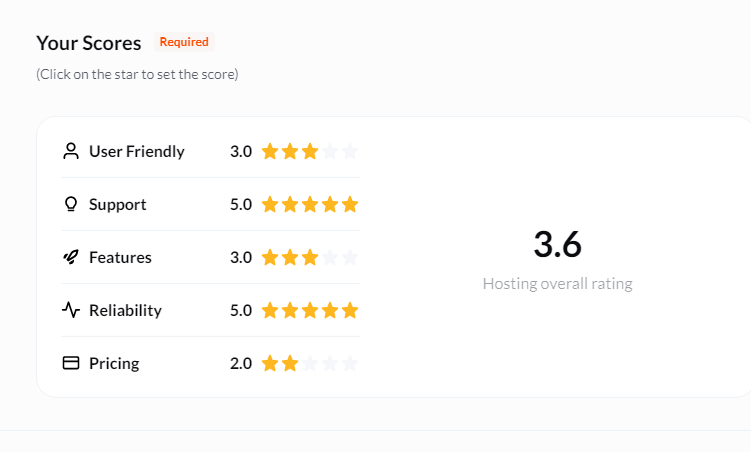
After testing a wide range of email hosting services, I decided to take Hosting.com’s offering for a spin to see how it really holds up. I was curious to find out if it could deliver the right mix of performance, ease of use, and features, without overcomplicating things or stretching the budget.
Right from the start, I found that Hosting.com strikes a good balance between affordability and functionality. The setup was quick and painless, and within minutes, I had a professional email account up and running. What stood out to me was how beginner-friendly the whole experience felt—no confusing steps or clunky interfaces.
Behind the scenes, Hosting.com runs on a global server network, which gives email delivery a solid boost in both speed and reliability.
In this review, I’ll walk you through everything I tested—from setup to support—so you can decide if Hosting.com is the right fit for your email hosting.
Hosting.com’s email hosting is for professionals and growing businesses that are ready to upgrade from free options like Gmail or cPanel email.
It gives you a clean, ad-free interface, secure communication, and a branded email address that helps you look more trustworthy to clients and customers.
One thing I noticed, though, is that Hosting.com doesn’t offer a 30-day money-back guarantee on their email hosting plans. Personally, I think this is a miss. Most top providers offer at least a short trial or refund window, especially for users trying out email hosting for the first time. It would’ve been a reassuring safety net.
However, there is a nice bonus that does add value: any annual email hosting plan comes with a free domain for the first year, including .com, .net, .org, and .us extensions. That’s a great deal if you’re starting fresh or rebranding—it saves you the extra cost and effort of buying a domain separately.
When it comes to payment methods, you can pay using PayPal, bank transfer, or your credit/debit card.
As for what you get with the actual plans, here are some of the standout features across the board:
While email hosting and website hosting are technically separate services, they both run on the same server infrastructure. That’s why I wanted to test the overall server performance behind Hosting.com, to get a sense of how reliable and responsive their environment is.
A stable, fast hosting backbone usually translates to faster email delivery, smoother webmail access, and better uptime, which all matter for professional communication.
To run this test, I created a real-world WordPress website using Softaculous and Sitejet Builder. I added plugins, images, videos, and full-page content to simulate an actual working site, not just a barebones installation. The goal was to see how Hosting.com’s shared hosting environment handles real load and to assess the performance that would likely back your email services, too.
I then used GTMetrix to analyze the website. Here’s what I found:
|
|

These are very strong results for a shared hosting environment. An LCP of 1.5s and TBT under 100ms show that Hosting.com’s servers respond quickly and handle dynamic content well. TTFB—often influenced by backend performance—came in under 500ms, which is excellent and speaks to the stability of the server environment.
While this is technically a website performance test, it gives me confidence that Hosting.com’s infrastructure is fast and well-optimized, which is just as important for email hosting.
A fast backend usually means:
Hosting.com clearly maintains a solid server setup. Based on this test, I’d trust them to deliver consistent performance not only for websites but for email hosting as well.
I also wanted to evaluate how reliable Hosting.com’s support channels really are. In my experience, solid customer support isn’t just a “nice to have”—it’s a must.
Especially with email hosting, where timely communication is critical, having responsive and knowledgeable support can save you from downtime, configuration errors, or security risks.
Hosting.com promotes 24/7/365 in-house Guru Crew Support, available through ticketing (for active customers) and live chat. I tested both channels to see how they actually perform in real-world scenarios.
To test the ticket system, I clicked on the “Help” button located at the top-right corner of my dashboard, then selected “Open Support Ticket.” The form was straightforward—you enter a subject line, pick a department, write your message, and optionally attach files using a simple drag-and-drop interface.

I submitted a question related to server security: I wanted to know how to configure a firewall only to allow traffic on essential ports—SSH (22), HTTP (80), and HTTPS (443)—while blocking everything else.
While this might sound like a VPS-level task, it’s still relevant if you’re serious about email security, as improperly configured firewalls can leave ports exposed or block essential mail services.
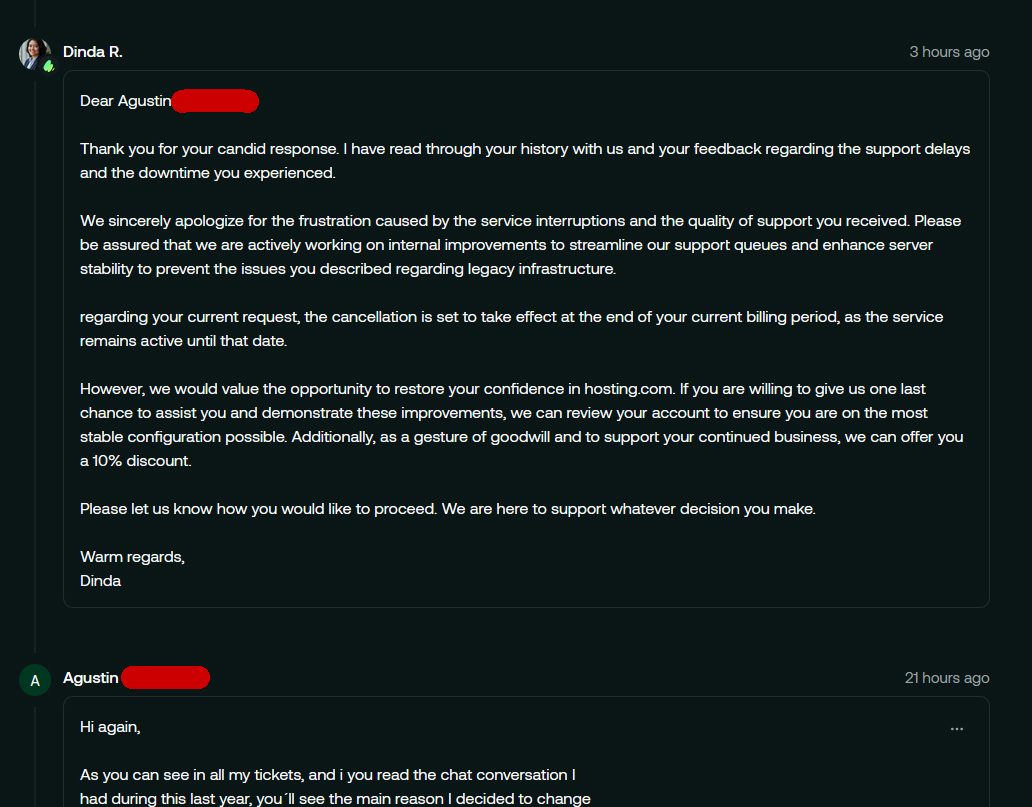
My ticket was submitted at 8:40 PM, and unfortunately, the response didn’t come until 26 hours later.
The reply I received was polite but somewhat limited. I was told that they didn’t have official documentation for this type of setup and that, because I was using an unmanaged service, support would be limited. That said, they were open to offering guidance or reviewing any steps I attempted on my own.

While I appreciated the tone and the willingness to help, the response time was slow, and the answer wasn’t as helpful or proactive as I had hoped, especially considering how important firewall rules are to keeping email ports and services secure.
Next, I tested the Live Chat, hoping for a faster and more responsive experience. I accessed it by clicking the chat icon in the bottom right corner of the dashboard, then selecting “Start Conversation.” I was asked for my email, support PIN (if I was a customer), and the department I needed help with, followed by my question.

I asked if there were any guides or documentation for managing email hosting, and also wanted to clarify where email account management would take place—inside cPanel or via a separate dashboard.
The initial response came from a bot, acknowledging my message and letting me know an agent would be with me shortly. Within about 2 minutes, a live agent joined the chat.
The agent, Elvira, was friendly and responsive. She confirmed that email hosting accounts are managed through a separate dashboard, not within cPanel. She also reminded me that if I were using a VPS or cPanel hosting account, I’d still have access to traditional webmail and could set up email accounts through those systems, too. It was a helpful clarification, especially for users who may be juggling different types of services under the same account.

Overall, the live chat was much faster and more useful than the ticket system. I appreciated that the agent didn’t just answer my question but also provided context that I hadn’t even asked for—like the difference between email hosting and webmail from cPanel.
My Thoughts:
Hosting.com does promote 24/7/365 support, but based on my test, real-time help is best accessed through the live chat, not the support ticket system—at least for email-related questions.
To properly evaluate how user-friendly Hosting.com’s email hosting really is, I walked through the entire process myself—from signing up to exploring the dashboard and setup options.
I believe this is one of the most important parts of any hosting review because no matter how powerful the features are, they’re only useful if the setup is smooth and easy to manage.
Here’s how the experience went:
I found signing up for Hosting.com’s email hosting to be simple and beginner-friendly. To get started, I went to their homepage and clicked on “Email” from the top menu, which took me to their email hosting section.

I selected the Medium plan by clicking “Compare plans” and then “Buy Now.” That brought me to the Product Configuration page, which was cleanly laid out.
Here, I could:

On the right-hand side, there was a helpful summary panel that updated in real-time to show all selected options, the pricing breakdown, and the total due. I appreciated this—it made it easy to review everything before committing.
After confirming my selections, I clicked “Confirm and Proceed” and was taken to a detailed basket page.
The basket showed a clear breakdown of everything I’d chosen. For example:
There was also a discount summary on the right.
I clicked “Proceed to checkout.”

At checkout, I was prompted to either log in or create an account. Since I was a new user, I entered my name, email address, and set a password. Once the account was created, I continued to the billing section.
Here, I entered my billing details and selected a payment method.
Once everything was filled out, I clicked “Place order and pay.”

Right after completing the order, I received a confirmation email that included my plan details, login credentials, and server setup information.
This email was straightforward and didn’t leave me wondering what to do next, which I really appreciated.
I found the entire signup experience smooth and well-organized. Each step was clear, the layout was modern, and the real-time summary helped me double-check everything before paying.
After completing my registration, I wanted to explore the Hosting.com dashboard to see just how easy it would be to manage my email hosting service.
For me, this is a key part of the experience—once you’ve signed up, you need a clean, responsive interface where you can handle your mailboxes, check billing, and add or adjust services without confusion or delay.
Right after placing my order, I was taken straight to the dashboard, and I was immediately impressed.

The interface is clean, modern, and responsive. Everything loaded quickly, and the layout felt intuitive from the start. A small but thoughtful touch greeted me at the top: “Welcome, [Your Name].” It gave the whole experience a more personal feel, rather than just being dumped into a generic admin panel.
Next to the greeting, there was a clearly labeled “Place New Order” button. This is where you can add more services, like another email hosting plan, register a domain, or upgrade to a VPS or reseller account. It’s all right there, just one click away.
The dashboard itself is laid out using simple, clearly labeled cards. For email hosting specifically, I clicked on “Products & Services” from the left-hand menu, and that’s where I could view all my purchased services.
My Medium email plan was listed with all the key details—like the domain I linked it to, its renewal date, and the current status of the service.
When I clicked into the email hosting service, I could manage my mailboxes directly from there. You can:
Everything was neatly organized. I didn’t have to dig through layers of menus or wonder where something was—it was all right where it should be.
The left-hand menu is your main navigation panel, and it stays fixed while the right side updates based on your selections. This design kept things snappy. I could click “Products & Services”, “Billing”, or “Domains”, and the content would load dynamically on the right—no page reloads, no waiting around.
Key sections include:
This split-view layout made everything feel fast and efficient. Even when jumping between different services or checking on billing, I didn’t lose track of where I was.
Hosting.com’s dashboard is well-designed and clearly built with the user in mind. Managing my email hosting was straightforward—I could see my plan, manage mailboxes, and access important settings without needing a manual. The dynamic layout, personalized elements, and quick access to services make this a dashboard I’d be happy to use long term.
Yes—I do recommend Hosting.com’s email hosting, especially if you’re looking for a straightforward, reliable, and affordable way to get professional email addresses set up quickly.
What I liked most was how easy it was to get started. The dashboard is clean and beginner-friendly, the features are practical without being bloated, and there’s even a free domain included for the first year on annual plans. It’s a solid value.
Support could be better—ticket response time was slow, but live chat made up for it with fast and helpful replies. As long as you know where to go for the right kind of help, you’ll be fine.
If you’re a freelancer, small business owner, or just tired of using personal email for work, Hosting.com is a great place to start.
| Description | Expert Review |
|---|---|
| Read cPanel Hosting Review | |
| Scalable plans for reselling hosting under your own brand | Read Reseller Hosting Review |
| Affordable, beginner-friendly hosting with fast speeds and reliable uptime. | Read Shared Hosting Review |
| Flexible, powerful hosting with dedicated resources and root access. | Read VPS Review |
| Optimized hosting for WordPress with speed, security, and ease of use. | Read WordPress Hosting Review |


Yes, Hosting.com email supports mobile access and can be connected to email apps like Gmail, Outlook, or Apple Mail using standard IMAP/SMTP settings.
Yes, Hosting.com includes mailbox migration tools that make it easier to move your existing emails and contacts from another host.
Absolutely. During setup, you can choose to use an existing domain, register a new one, or transfer a domain you already own.
Yes, their Medium, Venture, and Enterprise plans include multiple mailboxes and collaboration tools like shared calendars and tasks—ideal for small to mid-sized teams.
While Hosting.com doesn’t list specific daily limits, like most providers, they likely have fair usage policies in place to prevent spam and ensure stable performance. Contact support for exact thresholds.

Answer a few simple questions and find the perfect solution for you!
Start Hosting Search