


When it comes to building web applications, Node.js and npm are often mentioned together, but they serve different purposes in JavaScript development.
Node.js is the JavaScript runtime that lets you run JavaScript code outside the browser, including on servers.
NPM (Node Package Manager) is the Node.js package manager used to install, update, and manage packages for Node.js projects.
Node.js and npm are not alternatives, but instead, they work together. Node.js provides the runtime environment, while npm helps developers manage the libraries and dependencies their applications need.
While they may seem similar, crucial differences between the two can affect how you approach your web development projects since they serve different purposes.
In this article, we’ll explain how Node.js and npm differ, how they work together, and when to use each one.
If you’re ready to build your application, see our recommended list of Node.js web hosting providers and start working immediately!
Recommended Node.js Hosting Providers
| Provider | User Rating | Best For | Expert & User Reviews | |
|---|---|---|---|---|
 | 4.8 | Cloud Hosting | Kamatera review | Visit Kamatera |
 | 4.9 | Web Hosting | Ultahost review | Visit Ultahost |
 | 5.0 | VPS | Hostinger Review | Visit Hostinger |
- Node.js is a JavaScript runtime environment, while npm is a package manager for Node.js.
- Node.js is used for building scalable, high-performance, real-time web applications and APIs.
- npm provides access to packages and modules and enhances web applications’ functionality.
- Node.js supports single-page applications with real-time interaction between server and client.
- npm is ideal for building command-line tools to automate various tasks.
- Using package management software like npm saves time and simplifies the whole process.

Differences Between Node.js and npm
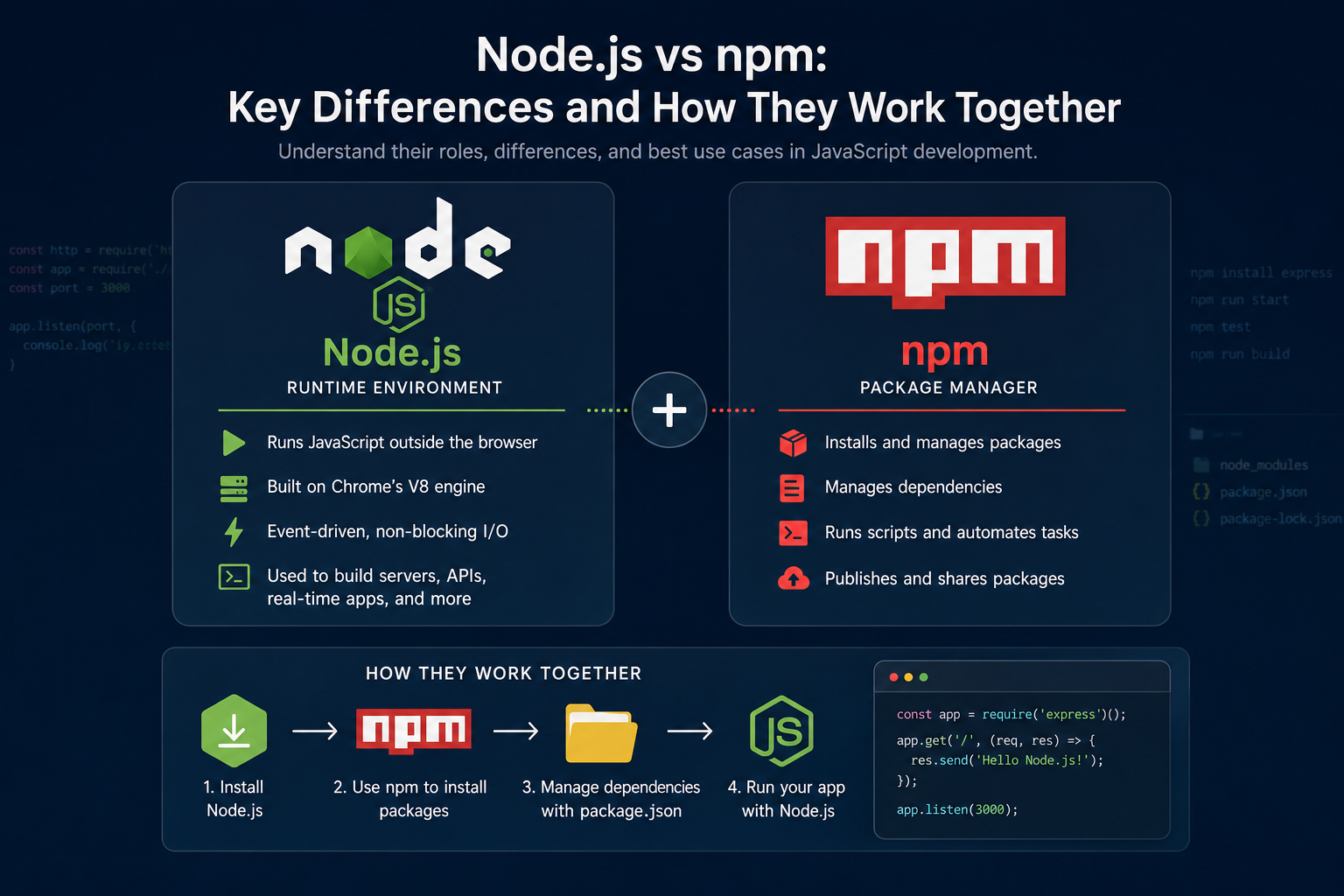
Understanding the difference between Node.js and npm is easier when you see how each fits into a typical development workflow. Node.js provides the runtime that executes JavaScript, while npm handles the packages and scripts that support the project.
| Feature | Node.js | npm |
| Role | JavaScript runtime | Package manager |
| Primary Purpose | Runs JavaScript outside the browser | Installs and manages packages and project dependencies |
| Common Commands | node app.js, node --version | npm install, npm update, npm run, npm --version |
| Installed With | Installed directly from the official Node.js installer | Included automatically when you install Node.js |
| Used For | Building and running server-side applications, APIs, scripts, and backend services | Downloading libraries, managing dependencies, running project scripts, and publishing packages |
| Beginner Takeaway | Think of Node.js as the engine that runs your JavaScript code. | Think of npm as the toolbox that helps you install and manage everything your Node.js project needs. |
Quick summary: When comparing Node.js vs npm, remember that they serve different purposes. Node.js provides the runtime environment, while npm manages packages and dependencies. They are not competitors. In fact, in most projects, Node.js and npm work together.
1. Role
npm is a package manager that enables you to install, update, and manage Node.js packages. Node.js, however, is a runtime environment that executes JavaScript code on the server side.
Node.js offers a robust runtime environment that supports server-side scripting, enabling developers to create scalable and fast applications.
npm, on the other hand, provides the CLI developers use to install and manage packages from the npm Registry. It also uses the package.json file to define project dependencies and scripts.
- Node.js is a JavaScript runtime that executes your code outside the browser.
- npm is a package manager that installs, updates, and manages project dependencies.
2. Installation
Node.js and npm are usually installed together because npm is bundled with Node.js. npm can also be installed or updated separately when needed. Node.js contains npm as a default package, so when Node.js is installed, npm is also installed automatically. npm can also be installed independently if necessary. The installation process for both Node.js and npm is basic, and several installation options are available based on the operating system.
3. Functionality
Node.js provides a runtime environment for executing JavaScript code on the server side. npm is a package manager that lets developers find and install packages from the npm Registry, the public registry that hosts JavaScript packages. In addition to package management, npm also allows developers to easily manage dependencies required for a project. Node.js and npm work together to create a powerful toolset for building robust and scalable web applications.
4. Package Management
npm is commonly used in package management and version control, whereas Node.js is used for executing JavaScript code. The npm package management system makes it easy for developers to install, update, and manage the dependencies a project needs.
This simplifies the management of complex projects with numerous dependencies and helps ensure that the required dependency versions are installed consistently.
5. Command-Line Interface
Both Node.js and npm have their own command-line interfaces. The Node.js CLI allows developers to execute JavaScript code on the server side, while the npm CLI is used for package management tasks such as installing and updating packages.
The npm CLI runs on Node.js and provides additional functionality for managing packages and projects.
One of the easiest ways to understand the Node command vs npm command distinction is to compare the commands you’ll use most often.
| Node.js command | npm command | What it does |
| node app.js | npm install | Runs your application, respectively installs project dependencies |
| node –version | npm –version | Displays the installed version |
| node script.js | npm run start | Executes a JavaScript file vs. runs a predefined project script |
In most projects, you’ll use both tools together.
For example:
- npm install
- npm install express
- node app.js
npm install installs the dependencies declared in package.json, while npm install express adds Express as a project dependency. When a package-lock.json file is present and up to date, npm uses it to install the locked dependency versions.
6. Development Community
Because of the size and vitality of their respective development communities, Node.js and npm provide easy access to a wealth of online documentation, tutorials, and support forums. These communities consist of developers, contributors, and users who collaborate to improve the tools and technologies.
Beginner tip: If you’re learning the difference between Node.js and npm, remember this simple rule:
- Use
nodewhen you want to run JavaScript code. - Use
npmwhen you want to install packages, manage dependencies, or run project scripts.
This practical distinction makes it much easier to understand the role each tool plays in a typical Node.js project.
What Is Node.js?
Node.js is a free and open-source JavaScript runtime environment that can be used across multiple platforms to create JavaScript-based server-side applications. It’s built on Chrome’s V8 JavaScript engine, which compiles JavaScript code into machine code, making it fast and efficient.
One of the critical features of Node.js is its event-driven, non-blocking I/O model, which allows it to handle many concurrent connections without blocking the execution of other requests. This makes Node.js an excellent choice for developing real-time applications and APIs because of its small footprint and scalability.
Node.js is used in about 2% of all websites with known servers.
Key Features of Node.js
Let’s take a moment and check out the key features of Node.js:
- Cross-Platform Support: Node.js can be run on different platforms, including Windows, macOS, and Linux, allowing developers to build and deploy applications across different operating systems without changing the core codebase.
- Asynchronous, Non-Blocking I/O: One of the core features of the Node.js runtime is its asynchronous, non-blocking I/O model that is achieved by using callbacks and event listeners. The fact that Node.js can handle multiple file, database, or network requests efficiently makes it well-suited for applications that process many simultaneous I/O operations.
- Event-Driven Architecture: Node.js uses an event-driven architecture to respond to incoming requests and system events. It makes non-blocking I/O operations possible, enabling it to handle large volumes of data-intensive applications. This also allows applications to remain responsive under concurrent workloads and is commonly used in APIs and other network-based services.
- Fast Execution with the V8 Engine: Node.js uses Google’s V8 JavaScript engine to execute JavaScript code efficiently, making it a real server-side powerhouse. Fast execution can improve application performance, particularly for I/O-intensive workloads, although overall performance still depends on the application’s design.
- Extensive Package Ecosystem: Node.js works closely with npm, giving developers access to a large ecosystem of open-source packages. Instead of writing common functionality from scratch, developers can install and manage reusable libraries for tasks such as web frameworks, database access, testing, and automation.
- Large and Active Community: The open-source nature of Node.js makes it easy for developers to contribute, so it has gathered a thriving community of developers. Various communities like NodeJS Community and OpenJSF provide a wealth of knowledge, tutorials, and resources that are helpful to both beginners and experienced developers.
- JavaScript-Based: Node.js is built on the widely used JavaScript programming language, which means that developers already familiar with JavaScript can quickly start building applications with Node.js. Additionally, using JavaScript for both client- and server-side development simplifies the development process by reducing the required specializations.

Ultahost
What is npm?
npm, historically short for Node Package Manager, is the default package manager distributed with Node.js. It helps developers install, update, and manage the packages and dependencies their projects need. npm also makes it easy to run project scripts and publish or share reusable code with other developers.
npm makes it easy to initialize new projects using the “npm init” command and manage dependencies through the package.json file. npm also allows developers to easily uninstall packages that are no longer needed. The Node.js Package Manager (NPM) is a potent tool that simplifies the creation of high-quality Node.js applications and speeds up the development cycle.
In short, Node.js provides the runtime environment, and npm provides the package management system. Together, they streamline JavaScript development for server-side applications.
Key Features of npm
Let’s dive a bit into some of the vital features of npm and how they can make package management more efficient and streamlined:
- Large Package Repository: npm boasts a large package repository of over 2 million packages, making it the world’s largest open-source library ecosystem. The ability to quickly and easily access and integrate these packages into applications is a significant benefit of npm and can significantly increase your efficiency as a developer.
- Command Line Interface: npm provides a user-friendly Command Line Interface (CLI) that simplifies the management of Node.js packages, allowing developers to easily search, install, update, and uninstall packages. The commands are easy to remember, and the interface is intuitive, making it accessible even to beginners.
- Package Versioning: npm helps developers manage package versions and specify which versions their projects depend on. It supports version ranges, allowing developers to control which package versions can be installed while maintaining compatibility across projects.
- Dependency Management with package.json: npm makes it easier to manage the libraries and tools that a Node.js project depends on. Developers declare project dependencies in the
package.jsonfile, which also stores scripts and other project metadata. When npm installs or updates dependencies, it uses thepackage-lock.jsonfile to record the exact dependency tree and resolved versions, helping keep installations consistent across environments. - Scripting: As a developer, you’ll find npm’s scripting feature incredibly useful because it can be used to define custom scripts in your package.json file and run them with simple commands. This makes automating common tasks like building, testing, deploying, and linting your application easier, making your workflow more efficient. Also, the ability to define, run, and share custom scripts gives you greater flexibility and control over the development process.
- Custom Packages: As a developer, you’ll appreciate that npm allows you to easily create and publish your custom packages to the vast npm repository using the “npm publish” command. With npm, you don’t have to worry about managing your own package repository, as the npm registry provides a centralized location for hosting and distributing your packages, so other developers can find, use, and contribute to your code, saving you time and effort.
- Security: While the npm ecosystem provides access to a large number of packages and integrates robust security features, developers should also evaluate these packages themselves. Good npm security practices, like checking for package version, recent updates, changelog, or known vulnerabilities, reduce the risk of introducing outdated or vulnerable dependencies.
- Audit tool: Also, in order to improve their npm security, developers can use the built-in npm security auditing tool, accessible with the
npm auditcommand. This command scans project dependencies and reports known security issues. Runningnpm auditregularly helps identify vulnerable packages and determine whether updates or fixes are available.
When it comes to JavaScript vs. Node.js vs. npm, it’s easy to confuse these technologies, but they each have a different role:
- JavaScript is the programming language used to write the code.
- Node.js is the runtime environment that executes JavaScript outside the browser, such as on servers and local machines.
- NPM (Node Package Manager) is the package manager used to install, update, and manage JavaScript packages for Node.js projects.
Think of it this way: You write code in JavaScript, run it with Node.js, and use npm to install the libraries and tools your project depends on.
How Node.js and npm Work Together
Although they have different roles, Node.js and npm are designed to work together throughout the development process. In a typical Node npm workflow, you use npm to set up and manage your project, while Node.js runs your application.
A common workflow looks like this:
Step 1: Install Node.js (Installing Node.js also installs npm by default)
Step 2: Verify the installation
By using the following two commands, you can check the installed versions of Node.js and npm, and confirm that they installed correctly:
- node -v
- npm -v
Step 3: Create a new project
Using the command “npm init” you create a package.json file that stores your project’s metadata, scripts, and dependency information.
Step 4: Install project dependencies
After running npm install express, npm resolves the package and its dependencies, installs them into the project’s node_modules directory, and records the dependency in package.json and the resolved versions in package-lock.json. Packages needed only during development, such as testing or build tools, can instead be installed with npm install --save-dev and recorded under devDependencies.
For reproducible clean installs in CI/CD environments, npm also provides npm ci, which installs dependencies from the lockfile without modifying it.
Step 5: Run your application
Finally, the “node app.js” command signals Node.js to execute your JavaScript application using the installed dependencies.
When working with Node.js and npm, think of the process as a partnership:
- Node.js provides the runtime that executes your JavaScript code.
- npm manages the packages, dependencies, and project configuration that your application relies on.
In most projects, you’ll use npm to build and maintain your project, then use Node.js to run it. That’s the standard Node npm workflow followed by developers building server-side JavaScript applications.
Node.js and npm Version Compatibility
When installing Node.js, npm is usually included automatically. However, the npm version bundled with Node.js depends on the specific Node.js release you install. As a result, different Node.js versions may include different npm versions.
You can quickly check which versions are installed on your system by running the following set of commands:
- node -v
- npm -v
The first command displays your Node.js version, while the second shows your installed npm version.
Although npm is bundled with Node.js, it can be updated independently if you need newer features, bug fixes, or compatibility improvements. For example, you can update npm using the “npm install -g npm@latest” command.
But before updating, make sure the newer npm release is compatible with your installed version of Node.js.
If you’re searching for the Node.js npm version included with your installation, remember that there isn’t a single universal answer. The npm version bundled with Node.js varies by release, and npm can also be updated separately without reinstalling Node.js. This flexibility allows developers to keep their package manager up to date while continuing to use a stable Node.js version.
Best Use Cases for Node.js and npm
Node.js and npm have become popular choices for developing modern web applications.
Node.js and npm are commonly used together in modern JavaScript development. Node.js provides the runtime that executes the application, while npm helps developers install and manage the packages, frameworks, and tools needed to build it.
Here are some of the best use cases for these technologies:
1. Web Applications
Node.js is often used for web development due to its ability to handle many concurrent connections and I/O operations. Its event-driven architecture and non-blocking I/O make it perfect for building real-time web applications, such as chat applications and online games.
Node.js can power the backend services of full-stack web applications, while npm provides access to the libraries needed for development, testing, and deployment.
Example workflow:
- Node.js → runs backend code and server processes.
- npm → manages project dependencies, scripts, and development tools.
2. Single-Page Applications
Node.js and npm are commonly used in the development workflow for single-page applications built with frameworks such as React, Angular, or Vue. Node.js provides the environment for running development tools and build processes, while npm manages the frameworks, libraries, and packages required by the project.
Example workflow:
- Node.js → runs development servers, build tools, and backend services that support the application.
- npm → installs and manages frontend frameworks, build tools, testing libraries, and other project dependencies.
3. Real-Time Applications
Node.js is suitable for real-time applications that require continuous communication, such as chat applications, collaboration tools, or live dashboards. npm provides access to packages that simplify real-time functionality, including WebSocket libraries and related tools.
One example of such a real-time application is the popular chat application, Slack. Node.js is notorious for its ability to handle many concurrent connections while maintaining low latency, making it the perfect choice if you need to build real-time applications.
Example workflow:
- Node.js → handles server connections and application logic.
- npm → installs real-time communication libraries and supporting packages.
4. API Development
Node.js is commonly used to build backend APIs because it can handle server-side JavaScript execution and many simultaneous requests efficiently. npm supports this process by installing frameworks such as Express, along with middleware, authentication packages, database libraries, and testing tools.
Because of its low resource requirements and scalability, Node.js has become a popular choice for developing APIs. APIs built with Node.js, like the PayPal REST API, can handle huge volumes of requests, making them perfect for building APIs that will see high traffic.
Example workflow:
- Node.js → runs the API server.
- npm → installs and manages Express, database drivers, testing libraries, and other dependencies.
5. Command-Line Tools
Node.js and npm are great for building command-line tools as they provide easy access to various packages and modules that can be used to create custom tools for automating various tasks.
Node.js can be used to create command-line applications that automate tasks or developer workflows. npm makes these tools easier to distribute and manage by handling dependencies and publishing packages.
For example, developers can use npx to run command-line tools provided by npm packages without installing them globally.
Example workflow:
- Node.js → executes the command-line application.
- npm → manages required packages and can distribute the tool through the npm registry.
6. Automation
npm supports automation by allowing developers to define scripts in package.json for common tasks such as testing, building, linting, and deployment workflows. These scripts can be run with commands such as npm run test or npm run build, making repetitive development tasks easier to standardize and automate. Node.js provides the runtime needed to execute JavaScript-based tools and scripts.
Conclusion
Node.js and npm, as we’ve mentioned, are essential tools for modern web development. While both differ, their combination is powerful and has been used to build some of the best websites, APIs, automation, real-time, and single-page applications. Considering their vast capabilities and active development communities, Node.js and npm are vital if you’re looking to build scalable and efficient applications.
They work together, but they solve different problems. Node.js is the runtime that allows you to run JavaScript outside the browser, including on servers and local machines. npm is the package manager that helps you install, manage, and run the packages and scripts your Node.js projects depend on.
In this Node.js vs npm summary, remember:
- Use Node.js to execute JavaScript applications.
- Use npm to install dependencies, manage packages, and automate project tasks.
- Most Node.js projects use both tools together as part of the development workflow.
Next Steps: What Now?
- Find the Best Node.js Hosting Providers
- Check out our recommended Website Builders
- Learn how to install Node.js on Ubuntu 15.10 or 14.04
- Install Node.js


