


A domain transfer, done correctly, consolidates your hosting and domain management under one account, simplifies billing, and removes the friction of managing separate logins for separate providers. Done without preparation, it can cause your website and email to go offline during the process.
Transfer vs. Pointing: Which Do You Actually Need?
Before starting a domain transfer, it is worth confirming that a transfer is actually what the situation requires. Many users initiate a transfer when a simpler approach would accomplish the same result faster.
A domain transfer moves registration management from one registrar to another. It takes between 5 and 8 days to complete, involves a one-time transfer fee, and extends the domain’s registration by one year from the transfer date.
Updating the nameservers points your domain to a different hosting provider without changing who manages the registration. It takes 24 to 48 hours to propagate, costs nothing, and leaves the registration exactly where it is.
If your goal is to host your website with Bluehost while your domain is registered elsewhere, updating your nameservers to ns1.bluehost.com and ns2.bluehost.com accomplishes that without a full transfer.
If your goal is to manage both your domain registration and hosting under a single Bluehost account with one login and one renewal cycle, a transfer is the right choice.
Is Your Domain Eligible for Transfer?
Before initiating any transfer, verify that the domain meets the following requirements.
- The domain must be at least 60 days old. ICANN policy prohibits transfers within 60 days of initial registration. This 60-day lock also resets after a previous transfer, meaning a recently transferred domain cannot be transferred again immediately.
- The domain must not be in a legal dispute or under a hold. Domains subject to ongoing disputes or administrative holds cannot be transferred until the issue is resolved.
- The domain must not be within 30 days of expiration. Transfers can take up to 8 days to complete. If your domain expires during this window, it may lock again and cause the transfer to fail. Check your expiration date before starting.
- The domain must not be in the redemption period. Domains that have expired beyond their grace period and entered redemption cannot be transferred until they are renewed.
- Contact information changes trigger a new 60-day lock. If you update the registrant name, organization, or email on a generic top-level domain (gTLD), ICANN policy requires a new 60-day transfer lock. Complete any necessary contact updates well in advance, or wait until after the transfer to make changes.
- .uk domains cannot be transferred to Bluehost. Bluehost does not support inbound .uk domain transfers at this time. These domains must remain with their existing registrar.

Part 1: How to Transfer a Domain to Bluehost
Step 1: Prepare the Domain at Your Current Registrar
Complete all preparation steps at your current registrar before initiating the transfer to Bluehost. You cannot make DNS changes or update domain settings once the transfer is in progress.
Update your nameservers first. If your website is already hosted with Bluehost, update your nameservers at your current registrar to ns1.bluehost.com and ns2.bluehost.com before starting the transfer. DNS changes are frozen during the transfer window. Updating nameservers in advance means your site continues pointing to Bluehost throughout the process without any gap in availability.

Verify your contact information is current. Your registrant email address is where both your current registrar and Bluehost will send authorization emails during the transfer. Make sure this address is accessible and that you can receive messages there. Using an email address associated with the domain itself is not recommended; use a separate email, such as a Gmail address that will remain accessible regardless of what happens to the domain.
Unlock your domain. Registrars lock domains by default to prevent unauthorized transfers. Log in to your current registrar’s control panel and disable the transfer lock for your domain. Some registrars do this automatically when you request a transfer; others require you to toggle it manually.

Alt: An example of a locked domain in Namecheap
Obtain your EPP code. The EPP code, also called the Authorization Code, Auth Code, or Authorization Key, is a unique password required to authorize the transfer. It is made up of letters, numbers, and special characters.
Request this code from your current registrar, either through your account panel or by contacting their support team. For .uk domains, instead of an EPP code, you would update the IPS tag, but as noted above, Bluehost does not support inbound .uk transfers.
When you receive the EPP code, treat it carefully. It is case-sensitive and character-specific. If you copy and paste it, check for any extra spaces at the beginning or end of the string, as these will cause the code to fail validation.
Step 2: Initiate the Transfer in Your Bluehost Portal
Log in to your Bluehost Portal. You can initiate the transfer from two locations:
Via the Domains tab:
- Click Domains in the left-hand menu.
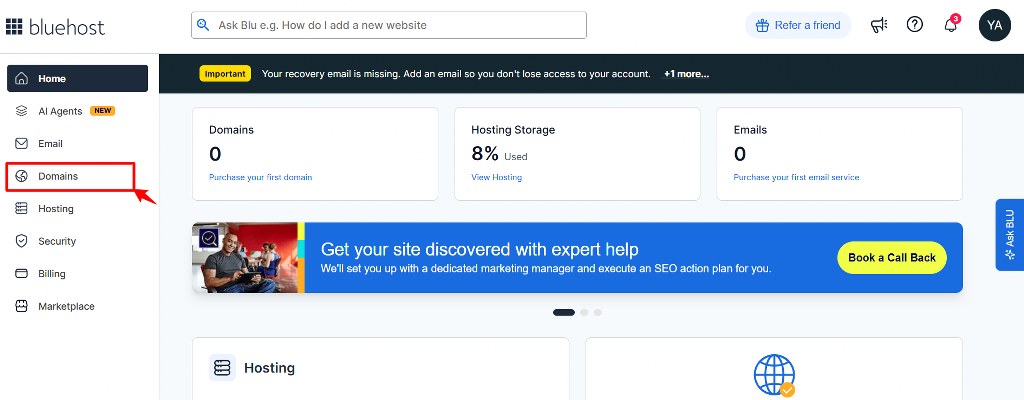
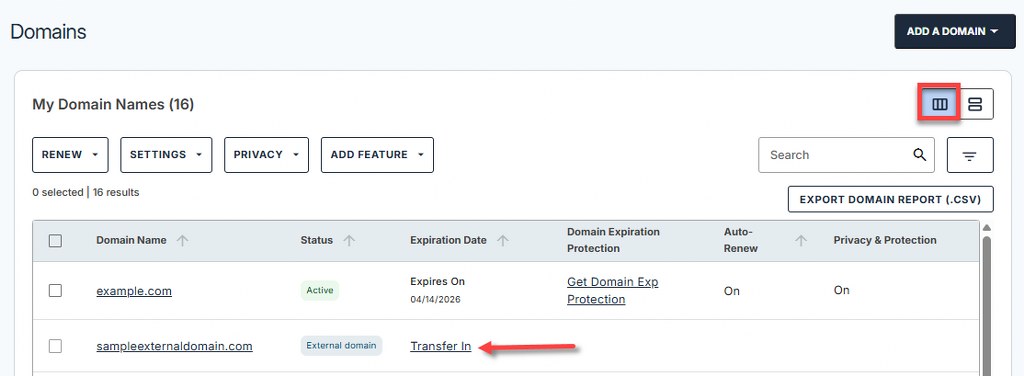
- Click Add a Domain on the right pane and select Transfer a domain to Bluehost.com. Alternatively, if the domain already appears as an External Domain in your account, click the Transfer In link next to it.
- Enter your domain name without the “www” prefix and click Submit.
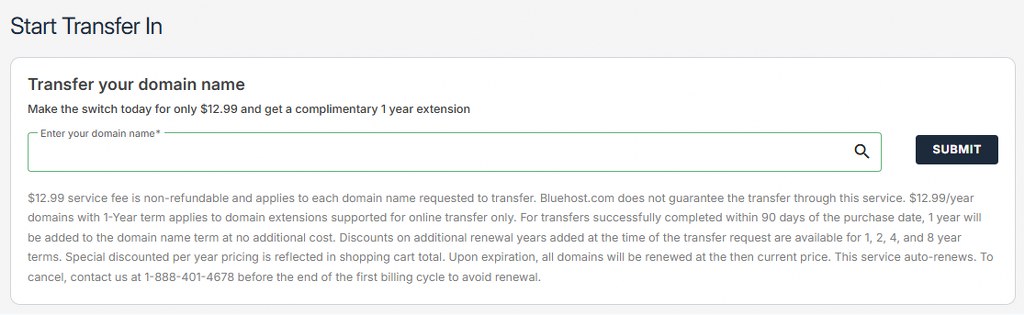
- The system will check whether the domain is eligible for transfer. If eligible, it is added to your cart.


Via Marketplace:
- Click Marketplace in the left-hand menu.
- In the Domains section, click Transfer a Domain You Already Own or click the Claim Offer button under the Domain Transfer In card.

Once in your cart, select your preferred registration term length from the dropdown. Review the order summary, apply a promo code if you have one, and proceed to checkout.

The transfer fee serves as a one-year domain renewal. Your domain’s expiration date extends by one year from the date the transfer completes.
Step 3: Submit the EPP Code
After completing the purchase, navigate to Domains > Transfer Status in your Bluehost Portal.

Your domain will show an Auth Code Needed status.
Click the plus icon next to Pending Auth Code, enter your EPP code exactly as provided, and click Submit.

Bluehost will verify the code and begin processing the transfer with your current registrar.

Step 4: Approve the Transfer and Wait
Both your current registrar and Bluehost will send authorization emails to your registrant email address.
Check your inbox, including spam, for messages from both providers and approve any confirmation requests promptly. Delays in responding to these emails extend the transfer timeline.
Domain transfers take between 30 minutes and 8 days, depending on your current registrar’s processing speed and how quickly confirmations are approved. Monitor your transfer status in the Bluehost Portal under Domains > Transfer Status throughout the process.
Part 2: How to Transfer a Domain Away from Bluehost
If you are moving your domain from Bluehost to a different registrar, the preparation steps happen inside your Bluehost Portal before you initiate anything with the gaining registrar.
Step 1: Update Your Nameservers
If your website is already hosted with the new provider, update your nameservers in the Bluehost Portal to point to the new host before initiating the transfer.

Nameserver changes cannot be made once a transfer is in progress. Completing this step in advance minimizes any gap in website availability during the transition. Changes to nameservers take 24 to 48 hours to propagate.
Step 2: Verify Your Contact Information
Your registrant email address is where the gaining registrar will send authorization emails. In your Bluehost Portal, click Domains, then the Contacts tab, and confirm that the registrant email address is current and accessible. Use an external email address rather than one tied to your domain.

If you need to update your contact information, do so well before initiating the transfer. Updating the registrant name, organization, or email on a gTLD triggers ICANN’s 60-day transfer lock, which will block the outbound transfer until the lock period expires.

Step 3: Unlock Your Domain
In your Bluehost Portal, click Domains and navigate to the domain you want to transfer. Domains are locked by default. Locate the domain lock setting and disable it to allow the transfer request to be processed by the gaining registrar.

Step 4: Obtain Your EPP Code
In your Bluehost Portal, go to your domain’s management page and locate the Move or Access tab. Request the EPP code from there. Bluehost will send the authorization code to your registrant email address, not to the email address on file for your Bluehost account. Check that inbox.

The EPP code is case- and character-specific. Copy it carefully, checking for extra spaces before or after the string.
Step 5: Initiate the Transfer with the Gaining Registrar
Log in to your new registrar’s account and begin their domain transfer process. Provide the EPP code when prompted and follow any additional validation steps they require. The gaining registrar will contact your registrant email for authorization, and Bluehost may also send a confirmation request. Approve both promptly to keep the transfer on schedule.
What Happens to DNS Records During a Transfer?
This is the most common source of post-transfer problems, and it is worth addressing directly.
A domain transfer does not automatically move your DNS records. When your domain moves to Bluehost, you will need to set up your DNS records in the Bluehost Portal to keep your website and email functioning correctly. The same applies in the other direction. If you transfer your domain away from Bluehost, you will need to recreate your DNS records at the new registrar.
Before initiating any transfer, document your current DNS records: A records, CNAME records, MX records for email, and any TXT records for email authentication or domain verification.
This reference makes it straightforward to rebuild the records at the new provider. Missing MX records are the most common cause of email disruption after a domain transfer.

Common Transfer Mistakes and How to Avoid Them
- Starting a transfer without checking the expiration date. If your domain expires during the transfer window, it may lock again, and the transfer will fail. Check the expiration date first and renew the domain before starting the transfer if it is within 30 days of expiring.
- Changing the registrant contact information right before transferring. This triggers a 60-day ICANN lock that blocks the transfer. If your contact information needs updating, do it well in advance or wait until after the transfer is complete.
- Not updating nameservers before starting. Once a transfer is in progress, DNS changes are frozen. If your site is already on the new host but your nameservers still point to the old one, your site will go offline during the transfer window. Update nameservers before initiating the transfer.
- Miscopying the EPP code. Extra spaces, incorrect capitalization, or missing characters cause EPP code validation to fail. Copy the code directly from the email or account panel, and check carefully for stray spaces before submitting.
- Ignoring authorization emails. Both registrars send confirmation emails during the transfer process. If these go to spam or are missed and time out, the transfer fails, and you have to start again. Monitor your registrant email inbox closely for the first few days after initiating a transfer.

